

To report organic traffic in GA4, open Traffic acquisition and find Organic Search. Apply the channel filter in the Landing page report to see which pages bring in those sessions. Select a tested key event, like generate_lead, to measure completed enquiries by the entry page.
Quick start
- Create or verify your GA4 property, web data stream, and Google tag.
- Test your lead, booking, or purchase event and mark it as a key event.
- Filter the Landing page report to Organic Search and select the event you want to count.
- Use the two-session-segment setup below if you need the percentage of organic sessions that triggered that event.
What Is GA4 for SEO, and What Can It Measure?
GA4 is Google’s event-based analytics platform. It measures website activity and groups that activity into sessions, users, and traffic channels. For SEO, GA4 helps you understand how visitors from unpaid search results interact with your website. You can measure traffic volume, engagement, completed actions, and recorded purchase revenue. GA4 does not improve Google rankings. It provides data that helps you assess content performance and make better optimisation decisions.
How GA4 Measures Organic Search Traffic and User Behaviour
GA4 records website interactions as events. A page view, form submission, or purchase can each generate an event. The platform also assigns traffic sources to sessions. Its Organic Search channel groups eligible visits from unpaid search results.
Key SEO metrics include:
| Metric | What it measures |
| Sessions | Visits that begin on your website |
| Active users | Distinct users who engaged with your website |
| Engaged sessions | Sessions lasting over 10 seconds, containing a key event, or recording at least two page or screen views |
| Engagement rate | Percentage of sessions that were engaged |
| Key events | Recorded actions marked as important to your business |
| Total revenue | Revenue recorded through supported monetisation events |
The 10-second engagement timer is the default and can be changed in the web stream’s tag settings. For websites, GA4 also counts a user as active when it receives a first-visit or engagement signal.
GA4 vs Google Search Console: Which SEO Metrics Does Each Track?
GA4 and Google Search Console measure different stages of the search journey.
| Google Search Console | Google Analytics 4 |
| Search impressions | Website sessions |
| Search clicks | Active users |
| Search queries | Landing pages |
| Click-through rate | Engagement rate |
| Average search position | Key events and revenue |
Search Console shows how your website performs in Google Search. GA4 shows what happens on your website after visitors arrive. A Search Console click does not produce a recorded GA4 session. Tracking restrictions, consent choices, and measurement differences can affect the figures. Use Search Console to investigate search visibility. Use GA4 to assess website activity and outcomes.
How to Set Up GA4 for Accurate SEO Tracking
Accurate SEO reporting starts with a working GA4 property, a valid web data stream, and reliable event collection. Before creating reports, confirm that GA4 receives data from the correct website. Check the measurement setup and settings that affect session accuracy.
Create or Verify Your GA4 Property and Web Data Stream
A GA4 property holds your reporting settings and data. A web data stream connects your website to that property.
For a new setup
- In Admin, select the account that should own the data. Click Create → Property. If you are new to Analytics, create an account first.
- Name the property and choose its reporting time zone and currency. Complete the setup prompts.
- Go to Admin → Data streams → Add stream → Web.
- Enter your website URL and a stream name, then create the stream.
- Open the stream and copy its Measurement ID, which starts with G-. Use it when installing the Google tag.
For an existing setup, confirm the stream URL, Measurement ID, and property time zone and currency. Check for recent activity before adding or changing a tag. A second property creates a separate reporting history.
Install the Google Tag and Confirm Data Collection
GA4 needs a Google tag to collect website events. For direct installation of the tag, open the web stream’s Google tag installation instructions. Choose Install manually and place the full snippet immediately after the opening <head> tag on every page. If you use a hosted CMS, follow its integration instructions.
For Google Tag Manager, configure a Google tag with the correct Measurement ID. Publish the container after testing. To confirm collection:
- Open your website in a browser.
- Visit several pages.
- Open Reports → Realtime in GA4.
- Check whether your visit appears.
- Confirm that page views are recorded.
Use Google Tag Manager Preview or GA4 DebugView for more detailed checks. Avoid duplicate tracking. A website that loads the same GA4 measurement setup twice may record extra page views or events.
Configure Internal Traffic, Cross-Domain Measurement, and Data Retention
Three settings deserve attention before you begin regular SEO reporting.
Internal traffic
Define internal traffic rules for office or team IP addresses where appropriate. Test the data filters before making them active. An active exclusion filter removes matching events from processing at all. A report filter only changes which collected data you view.
Cross-domain measurement
Configure cross-domain measurement when visitors move between related domains during one journey. For example, a website may send customers to a separate checkout domain. Correct configuration helps maintain session and user continuity across supported domains.
Data retention
Review data retention settings under GA4 data settings. Standard GA4 properties offer 2 or 14 months for applicable event-level data. This setting limits the event-level history in Explorations. Standard aggregated reports use separate retention rules.
How to Find and Filter Organic Traffic in GA4
The Traffic acquisition report is the main starting point for measuring organic search sessions in GA4. It shows which channels brought visitors to your website and how those sessions performed.
Find Organic Search Sessions in the Traffic Acquisition Report
Follow these steps:
- Open your GA4 property.
- Go to Reports → Acquisition → Traffic acquisition.
- Set the reporting date range.
- Find the Organic Search row.
- Review sessions, engagement, and key events.
The report uses Session default channel group as its primary dimension. Organic Search represents unpaid search traffic that GA4 classifies under its channel rules. It is separate from Paid Search, Direct, Referral, and other channels. A report with 8,000 total sessions and 3,000 Organic Search sessions indicates that organic search contributed 37.5% of recorded sessions during that period. This share describes traffic distribution, not the quality or value of those visits.
Filter Organic Traffic by Search Engine, Source, and Medium
The Organic Search channel includes traffic from Google, Bing, and other recognised search engines. To examine individual sources, change the primary dimension to Session source/medium or add it as a secondary dimension. Common values include:
| Session source/medium | Meaning |
| google / organic | Unpaid Google Search traffic |
| bing / organic | Unpaid Bing search traffic |
| yahoo / organic | Unpaid Yahoo search traffic |
Apply a session channel filter for Organic Search to keep the analysis focused. Do not assume every visit with a search-related referral is correctly classified. GA4 channel rules and source information determine the assigned channel. Check unexpected source values before using them in SEO performance reports.
Understand Session Acquisition vs First User Acquisition
GA4 provides two important acquisition perspectives.
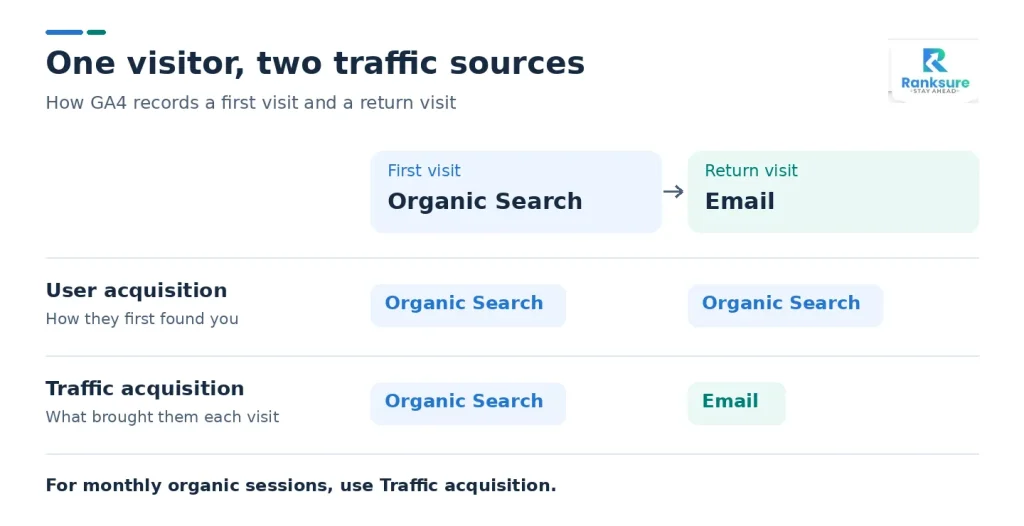
- User acquisition identifies how a user was first acquired, using dimensions such as First user default channel group.
- Traffic acquisition identifies the source of an individual session, using session-scoped dimensions.
Consider a visitor who first discovers your website through Google Search. The visitor returns a week later through an email campaign. Their first user acquisition remains Organic Search. Their later session is attributed to Email. For monthly organic traffic reporting, use session-scoped acquisition dimensions. This prevents first acquisition data from being mistaken for the source of every later visit.
How to Create an Organic Landing Page Report in GA4
The GA4 Landing page report shows which pages visitors first enter during a session. Filtering this report for Organic Search helps identify pages that attract unpaid search traffic and support valuable website actions.
Open the Landing Page Report and Apply an Organic Search Filter
Follow these steps to isolate organic landing pages:
- Open Reports → Engagement → Landing page.
- Select your reporting period.
- Click Add filter.
- Choose the Session default channel group.
- Select Organic Search.
- Apply the filter and review the results.
The report displays landing page paths and related performance metrics. For example, /seo-services/ and /blog/technical-seo/ attract different visitor groups. Comparing their organic sessions helps you understand their contribution to website traffic. Some GA4 properties use customised report navigation. Editors restore missing standard reports through the reporting Library.
Add Engagement and Key Event Metrics to Landing Pages
Keep Sessions and Engagement rate in view. In the Key events column, open All events and choose generate_lead or the event you want to report. This gives you the count for that event by landing page under the Organic Search filter. If the column is missing, an Editor or Administrator can add Key events in Customize report → Metrics. Use the two session segments in the custom report below to measure the share of organic sessions that triggered the selected event.
Understand Landing Pages vs Pages and Screens
This distinction matters because a page that receives many views may not be the page that originally attracted the visitor.
| GA4 report | What it shows | Example |
| Landing page | The first page viewed in a session and outcomes associated with sessions that started there. | A visitor enters through a blog article, opens a service page, and submits a contact form. The blog article is the landing page. |
| Pages and screens | Views and activity across the pages visitors browse during a session. | Both the blog article and the service page can record a view. |
Use Landing page to see where sessions start. Use Pages and screens to see which pages visitors view along the way.
How to Set Up SEO Conversion Tracking and Key Events in GA4
GA4 conversion tracking measures actions that matter to your business. GA4 uses the term key events for actions marked as important. A key event is collected and represent a completed enquiry, registration, booking, or purchase.
Identify Which Website Actions Should Count as SEO Key Events
Choose events that represent completed actions rather than general browsing activity.
| Website type | Recommended event | Business action |
| Service business | Generate lead | Completed enquiry form |
| SaaS website | Sign up | Completed account registration |
| Ecommerce store | purchase | Completed transaction |
| Appointment website | Custom booking event | Confirmed appointment |
A button click does not always mean a lead was generated. Visitors may click a contact button without completing the form. For lead generation websites, track successful submissions rather than clicks on the submit button. A confirmation message, successful form response, or verified completion event provides a reliable trigger.
Create or Configure Events and Mark Them as Key Events
GA4 collects events through the Google tag, Google Tag Manager, or supported website integrations. To configure a lead event:
- Identify the successful form completion action.
- Configure the website or tag manager to send generate_lead.
- Include relevant event parameters where needed.
- Submit a test form.
- Confirm that GA4 receives the event.
- Open Admin → Data display → Events or the relevant Key events settings.
- Mark generate_lead as a key event.
The exact administration layout varies. Event names are case-sensitive. Use consistent names across your implementation. Avoid sending the same event through both a website plugin and Google Tag Manager unless the setup prevents duplicate collection.
Measure Organic Leads, Purchases, and Session Key Event Rates
Use session-scoped acquisition dimensions to report key events from organic sessions. Keep these three metrics distinct.
| Metric | What it measures |
| Key event count | How many times GA4 counted the selected event under its counting method |
| Sessions with the selected key event | How many sessions contained at least one trigger of that event |
| Session key event rate | What share of all sessions in the same report scope contained the selected event |
Organic session key event rate (%) = (organic sessions with the selected key event ÷ all organic sessions in the same report scope) × 100
If 30 of 2,000 organic sessions contain generate_lead, the rate is 1.5%. Match the channel, date range, and landing page in both counts. If generate_lead fires three times in one session, GA4 counts three key events with Once per event, or one with Once per session. Both methods yield one session containing the event. Check the counting method in the event’s settings before comparing counts. For ecommerce SEO reporting, use purchase and review purchase revenue alongside session metrics.
How to Build a Custom GA4 SEO Report
A custom GA4 SEO report combines organic acquisition, landing page engagement, and key event data in a consistent view. GA4 Explorations allow you to select dimensions, metrics, filters, and comparisons for more focused analysis.
Create an Organic Search Exploration with the Right Dimensions and Metrics
In Explore, open a Free form Exploration. Import Landing page as a dimension and Sessions as a metric. Put Landing page in Rows and Sessions in Values. Create two Session segments using the + next to Segments in the Variables panel. Add the conditions below and apply both segments to the same tab.
| Session segment | Include sessions that meet these conditions | Use the Sessions value as |
| All organic sessions | Session default channel group exactly matches Organic Search | Denominator |
| Organic sessions with a lead | Session default channel group exactly matches Organic Search AND Event name exactly matches generate_lead | Numerator |
Use Sessions for both columns. Keep the event-name condition inside the second session segment. A tab-wide event filter could also change the data used for the denominator.
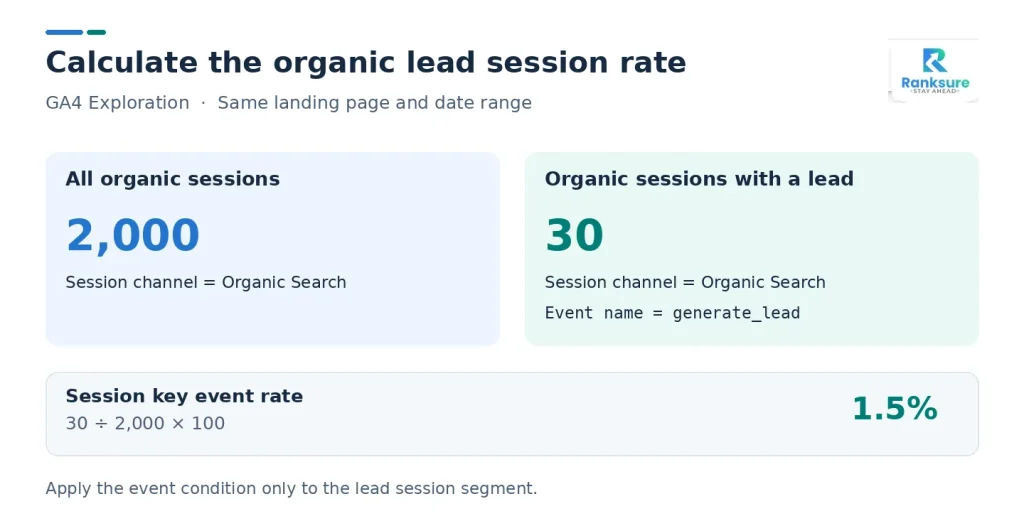
For each landing page, divide the second segment’s Sessions value by the first and multiply by 100. Export the table if you want to calculate the rates in a spreadsheet. Leave the rate blank when the denominator is zero. Before sharing, check a landing page for a date range within your Exploration’s retention window. Confirm that the all-organic column still includes sessions without a lead. Use the same landing-page dimension and date range throughout. Add Engaged sessions and Engagement rate if you also need an engagement comparison.
Compare Organic Landing Pages by Traffic, Engagement, and Conversions
Consider two landing pages from a hypothetical monthly SEO report.
| Metric | Page A | Page B |
| Organic sessions | 5,000 | 1,200 |
| Engaged sessions | 3,000 | 900 |
| Engagement rate | 60% | 75% |
| Sessions with a lead key event | 50 | 48 |
| Session key event rate | 1% | 4% |
Page A attracts more than four times as many organic sessions as Page B. However, Page B generates almost the same number of sessions with a lead key event. Its session key event rate is four times higher. This suggests that Page B deserves closer review as a source of business enquiries. It does not prove that its visitors are more valuable. Search intent, traffic quality, and lead qualification may explain the difference.
Save, Share, and Maintain a Reusable SEO Reporting View
Save your Exploration with a descriptive name, such as Monthly Organic Landing Page Performance. Keep the following settings consistent across reporting periods:
- Selected organic traffic channel
- Landing page dimension
- Key event definition
- Reporting date range
- Metric definitions
- Comparison method
GA4 allows users to share or export reports, subject to permissions and feature availability. A saved Exploration differs from a published report collection. Publishing standard reports into navigation requires appropriate editing access.
How to Connect Google Search Console to GA4 for SEO Reporting
Connecting Google Search Console to GA4 adds Google Search visibility data to your analytics reporting. The integration provides search queries, clicks, impressions, and landing page data alongside supported GA4 metrics.
Link Your Search Console Property to Your GA4 Web Data Stream
Google requires Editor access to the GA4 property and verified ownership of the Search Console property. To create the connection:
- Open GA4 Admin.
- Find Product links → Search Console Links.
- Click Link.
- Select the verified Search Console property.
- Choose the matching GA4 web data stream.
- Review the settings and submit the connection.
After linking, open the Reporting Library and publish the Search Console collection if it is not visible.
Analyse Search Queries, Landing Pages, and Organic Search Performance
The integration provides two main reports.
- Google Organic Search Queries shows search terms and related Search Console metrics, including clicks, impressions, click-through rate, and average position.
- Google Organic Search Traffic shows landing page performance using compatible Search Console and GA4 measurements.
For example, a page with growing impressions but weak clicks needs a review of its title, snippet, or search intent alignment. A page with strong clicks but few recorded leads requires further landing page analysis. Search Console metrics have dimension compatibility limits. You cannot freely combine individual search queries with every GA4 conversion dimension. Allow about 48 hours for Search Console data to appear in the integration. The reports can show up to 16 months of history.
How to Validate GA4 Organic Traffic and Conversion Reports
GA4 reporting validation checks whether the collected events, traffic sources, and report settings reflect actual website activity. This process helps detect missing conversions, duplicate events, incorrect attribution, and tracking gaps.
Test Key Events and Check for Missing or Duplicate Conversions
Test each important action before using its data in a client or management report. For a lead form:
- Open the website with debugging enabled.
- Complete a test form submission.
- Check the event in GA4 DebugView.
- Confirm the event name and parameters.
- Verify that one successful submission creates the intended event.
- Repeat the test using another supported browser or device.
- Check the processed reporting data after it becomes available.
A duplicate event may occur because two tracking methods monitor the same form. A missing event may result from an incorrect trigger, a blocked script, or a failed form completion condition.
For example, open /seo-services/, submit the test form once, and confirm one generate_lead in DebugView. For the processed-data check, note the date and landing page of a consenting session that arrived from unpaid search. Once the data is processed, check Landing page → Organic Search → Key events → generate_lead for that date and page. A direct test visit can confirm collection in DebugView. Use the channel assigned to the session when checking the processed report.
Diagnose Unassigned Traffic, Self Referrals, and Tracking Gaps
Unusual acquisition patterns may indicate measurement problems. Use this validation checklist during report quality checks.
| Check | Expected result | Common failure | Corrective action |
| Organic channel | Search visits classified correctly | Unexpected Unassigned traffic | Review source and medium |
| Lead event | One event per completed lead | Duplicate events | Inspect tag triggers |
| Form tracking | Successful actions recorded | Missing events | Test completion trigger |
| Domain continuity | Related domains retain attribution | Self referrals | Review cross-domain settings |
| Internal traffic | Test and staff activity handled as planned | Inflated sessions | Review traffic filters |
| Consent | Collection follows consent choices | Missing activity | Review consent implementation |
Consent choices and browser restrictions limit the recorded activity. GA4 may also apply data thresholds, modelling, or reporting limits in certain situations. Do not adjust reported totals manually to force agreement with another analytics platform.
Explain Why GA4 Organic Sessions Differ From Search Console Clicks
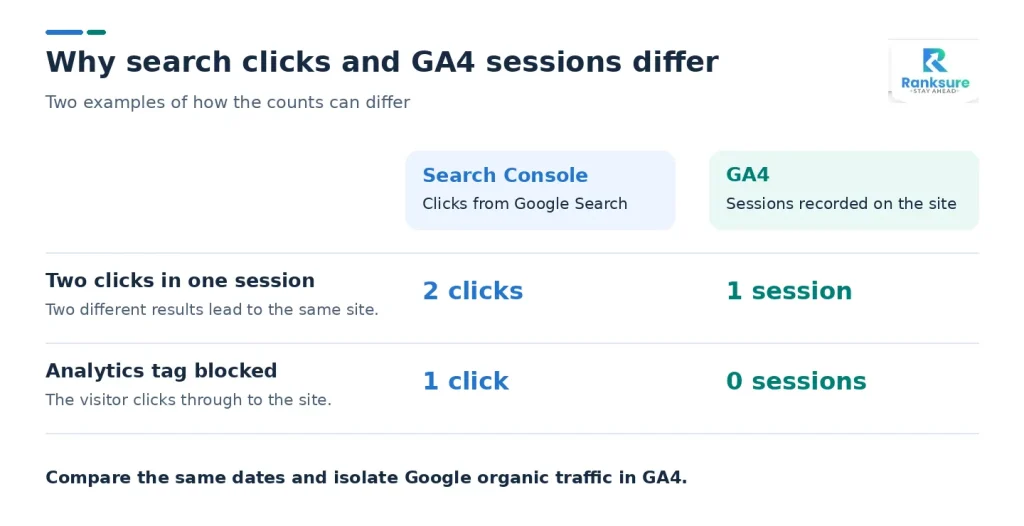
GA4 sessions and Search Console clicks are not identical measurements. Search Console records clicks from Google Search results. GA4 records sessions through website analytics collection.
Differences occur because of:
- Visitors who reject analytics consent
- Browser tracking restrictions
- Missing or blocked Google tags
- Different reporting time zones
- Different data processing schedules
- Multiple clicks within one session
- Differences in search attribution and channel classification
Compare equivalent dates and relevant Google organic traffic segments before investigating discrepancies. Investigate major changes in the relationship between the two metrics, especially after a website migration, consent update, or tag deployment.
How to Interpret GA4 SEO Reports and Improve Performance
GA4 SEO reports are useful when their metrics guide specific decisions. Focus on traffic changes, landing page behaviour, and recorded outcomes rather than reporting sessions alone.
Identify High Traffic Pages With Low Conversion Rates
A page with strong organic traffic and a low session key event rate may have an opportunity for improvement. Use a content audit to review the page against its search intent.
For example, a guide targeting an informational query may attract visitors who are researching rather than ready to request a service. Investigate the page’s offer, calls to action, mobile usability, and visitor journey. GA4 identifies the performance pattern. It cannot establish the cause without further evidence.
Compare SEO Performance Across Reporting Periods
Use consistent reporting periods to evaluate changes. Monthly comparisons help identify recent movement. Year-over-year comparisons help account for seasonal demand. Consider this hypothetical example:
| Metric | Previous month | Current month |
| Organic sessions | 4,000 | 4,800 |
| Sessions with lead key event | 80 | 72 |
| Session key event rate | 2% | 1.5% |
Organic sessions increased by 20%, but sessions with a lead key event fell by 10%. This indicates that traffic growth did not produce a matching increase in recorded lead outcomes.
Review which landing pages gained traffic and whether the traffic mix changed. Check for tracking changes before treating the decline as a conversion problem.
Report Organic Traffic, Leads, and Revenue Without Overstating Attribution
A monthly GA4 SEO report should present a clear set of acquisition and outcome metrics. Include organic sessions, leading landing pages, engagement rate, selected lead key events, session key event rate, and recorded purchase revenue where applicable. Separate recorded analytics outcomes from confirmed business results. A lead event may represent a submitted form, but it does not establish that the lead was qualified, contacted, or converted into a customer. Revenue reporting also depends on the attribution scope and available transaction data.
Frequently Asked Questions About GA4 for SEO
Is Google Analytics 4 Free for SEO Reporting?
Yes. The standard version of Google Analytics 4 is free and supports acquisition reports, landing page analysis, event tracking, and Explorations. Google Analytics 360 offers enterprise capabilities and higher limits through a paid service.
Can GA4 Show Which Organic Keywords Generate Conversions?
GA4 cannot reliably assign every organic Google Search keyword to individual website conversions. Search Console provides query performance data, while GA4 measures website actions. The integration has limits on combining these dimensions. Use landing page analysis to connect search visibility trends with recorded website outcomes.
Why Is Organic Search Traffic Missing From My GA4 Reports?
Missing Organic Search traffic results from absent tracking, an incorrect date range, channel classification, or report filters. Check Realtime data, review the Traffic acquisition report, inspect Session source/medium, and confirm the Google tag is working.
How Often Should I Review GA4 SEO Reports?
Review key tracking events after website or measurement changes. Check organic performance weekly for operational issues and prepare a consistent monthly report for broader SEO evaluation. Use longer periods to assess seasonal patterns and sustained performance.
Conclusion
Keep a record of the organic channel filter, selected key event, and date range used in each report. Recheck those settings and run a test after changes to forms, tags, or checkout domains. A consistent setup makes it easier to tell when SEO performance changed and when the way you measured it changed.